Inline message
An inline message lets users know when important information is available or when an action is required.Usage
The inline message is a notification that you can use in-context to give people more information, a warning, an error message, or a confirmation.
People can interact with the icon, title or secondary text to reveal the full inline message. When the message is triggered, an popup appears providing further context on the issue and links to information or actions.
Parts
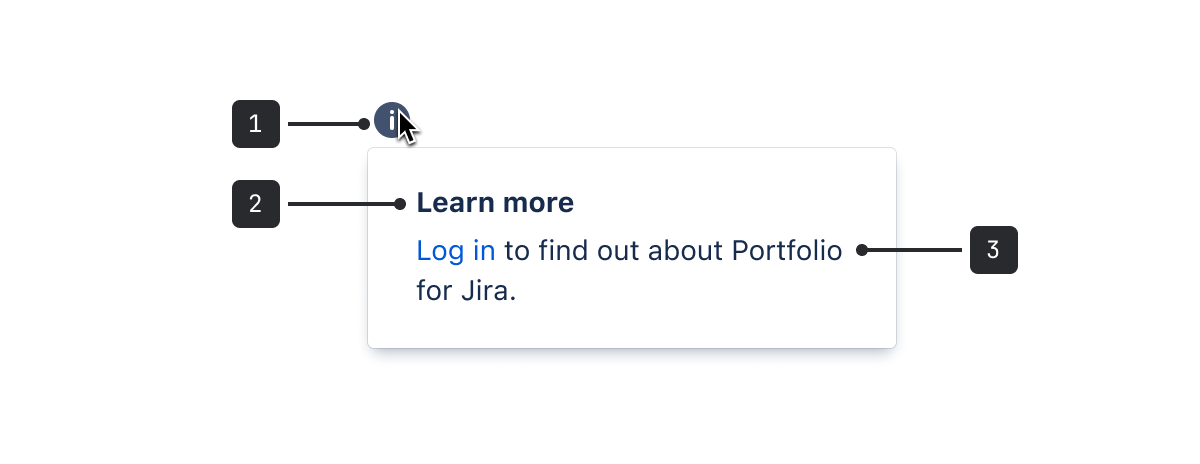
- Icon: Indicates the status of the message. The icon's color and symbol give a quick visual indicator of the type and urgency of the message.
- Title (optional): Should be concise and bolded when in use.
- Message: Use regular text for the message body. The message is restricted to five lines in length.
Accessibility
- Avoid writing messages longer than five lines. If the text overflows, the message body will be truncated with an ellipsis, which is not accessible.
- We recommend including a title with the inline message. While you can create inline messages with icons alone, these may be easily missed.
- Use
iconLabelto provide an accessible label if the inline message doesn't have a title, or if the icon adds additional context. For example, when the icon conveys an error.
Content guidelines
Warning
Warning messages appear before we ask people to take action. This is usually in anticipation of a significant change. Have empathy for the user. Inform, but don't alarm. If the warning comes before an action, clearly communicate what will happen if they proceed, and provide an alternative where possible.
- Make sure you're not talking about something that has already occurred (this should be an error message instead).
- For authentication messages include a link that describes the appropriate action if available. Keep the message short and only include relevant information.
Error
Explain the problem and provide people with a next step or an alternative. Keep the message simple and direct, and avoid confusing people with technical details.
- Avoid blame and accept if something is our fault - "we're having trouble connecting" rather than "you're having connection issues."
- Let people know what's causing the error, rather than writing a general error message that works for a number of things.
Confirmation
For these messages, it's best to confirm the outcome then get out of the way. If something has just been created, give people an option to view it. If the message occurs frequently, keep it concise. Bigger, more infrequent messages can be celebratory and playful.
Information
Information messages alert people to additional information without requiring an action. Inform people about something that might help or impact them. Then, let them get back to work.